
From Arduino to ROS2: My Chaotic First Step into Robot Simulation
How I spent a whole day fighting my own laptop before a robot even moved.

I thought learning ROS2 would go like this:
Install.
Run.
Robot moves.
Feel like a genius.
Here is what actually happened:
Try to install Ubuntu.
BitLocker says no.
Windows says no.
My C drive says "28 GB max, take it or leave it."
Spend hours debugging before a single robot spawns.
Robot finally moves.
Feel like I survived something.
This is that story.
Who Am I and Why Does This Matter
I am Sandip, an Electronics, Communication and Information Engineer from Nepal. I have worked with Arduino, ESP32, sensors, motors, and small embedded projects. I am comfortable writing one program that controls everything on a microcontroller.
Then I heard about ROS2.
"It is how real robots are built. Nodes communicate with each other. Topics carry data. It is modular and professional."
That sounded exciting. What I did not hear was the disclaimer:
"Also, please have a properly partitioned Linux machine, a stable GPU, and infinite patience."
I had none of those. I had a Windows 11 ASUS Vivobook, a dream, and a free afternoon that became a full day.
My Laptop Situation (aka The Real Boss Level)
Here is my machine, in cold system info terms:
OS       : Windows 11 Home Single Language
CPU      : 13th Gen Intel Core i7-1355U
RAM      : 16 GB
GPU      : Intel Iris Xe Graphics
Storage  : Limited. Very limited.
Perfectly capable of running ROS2. But first I had to get to ROS2.
Attempt: Dual Boot
The plan: shrink the C drive, install Ubuntu alongside Windows.
Open Disk Management
→ Shrink Volume
→ Available shrink space: 28 GB
→ Try cleanup + defrag + delete restore points
→ Available shrink space: 38 GB (still)
For ROS2 + Gazebo, I needed at least 80 GB. Windows had unmovable system files parked at the end of the partition — page files, shadow copies, crash dumps. I tried:
# Disable hibernation to free pagefile
powercfg /h off
Still not enough space. Dual boot was out.
Then I thought: what if I just delete Windows entirely and go Ubuntu-only? The answer was no. My files, browser sessions, and 2FA apps were all on Windows. No backup space big enough. Moving on.
⚠️ BitLocker tip: Before touching any partition or boot settings, run
manage-bde -status C:first. If it showsProtection Status: On, save your recovery key immediately. Changing boot settings without this can lock you out of your own machine.
The Actual Solution: WSL2
After enough failed attempts, the right move became obvious: WSL2 — Ubuntu running inside Windows without touching a single partition.
wsl --install -d Ubuntu-22.04
After setup:
asus@DESKTOP-8V8PMFR:~$
WSL2 is not native Ubuntu — for heavy Gazebo experiments later, native install is better. But for learning and getting started, it is perfectly fine.
Installing ROS2 Humble
Inside Ubuntu WSL:
# Add ROS2 apt source
sudo apt update && sudo apt install curl gnupg lsb-release -y
sudo curl -sSL https://raw.githubusercontent.com/ros/rosdistro/master/ros.key \
  -o /usr/share/keyrings/ros-archive-keyring.gpg

echo "deb [arch=$(dpkg --print-architecture) \
  signed-by=/usr/share/keyrings/ros-archive-keyring.gpg] \
  http://packages.ros.org/ros2/ubuntu \
  \((source /etc/os-release && echo \)UBUNTU_CODENAME) main" \
  | sudo tee /etc/apt/sources.list.d/ros2.list

sudo apt update && sudo apt install ros-humble-desktop -y
source /opt/ros/humble/setup.bash
Then TurtleBot3:
sudo apt install ros-humble-turtlebot3* ros-humble-gazebo-ros-pkgs -y
export TURTLEBOT3_MODEL=burger
ROS2 was installed. Now the real chaos began.
Getting Gazebo to Actually Work
Problem 1: Stuck at "Preparing your world"
Ran the normal launch. Gazebo opened. Then sat there for five minutes doing nothing. Fix: kill stale processes and disable the online model database.
pkill -9 gzserver && pkill -9 gzclient && pkill -9 gazebo
export GAZEBO_MODEL_DATABASE_URI=""
Problem 2: "Address already in use"
A ghost Gazebo process from a previous attempt was still running. Same fix as above.
Problem 3: Robot not listening
I ran teleop, pressed keys — nothing moved. I checked:
ros2 topic info /cmd_vel
Publisher count:    1   ← teleop is sending commands
Subscription count: 0   ← nobody is home
The robot was not spawned. Teleop was talking to an empty room. The topic list was missing /scan, /odom, and /cmd_vel entirely — TurtleBot3 was not in the simulation.
The Fix That Actually Worked
The standard launch was unreliable in WSL. The correct approach: start Gazebo manually with the ROS factory plugin so it can actually spawn robots.
Terminal 1 — Gazebo server with ROS plugins:
export GAZEBO_MODEL_PATH=/usr/share/gazebo-11/models:/opt/ros/humble/share/turtlebot3_gazebo/models
export GAZEBO_MODEL_DATABASE_URI=""

gzserver --verbose -s libgazebo_ros_init.so -s libgazebo_ros_factory.so
Terminal 2 — Gazebo GUI:
gzclient
Terminal 3 — Spawn the robot:
source /opt/ros/humble/setup.bash
ros2 run gazebo_ros spawn_entity.py \
  -entity burger \
  -file /opt/ros/humble/share/turtlebot3_gazebo/models/turtlebot3_burger/model.sdf \
  -x 0 -y 0 -z 0.01
Terminal 4 — Verify and drive:
ros2 topic list
# /cmd_vel  /odom  /scan  /tf  ← all present ✓

ros2 run turtlebot3_teleop teleop_keyboard
Publisher count:    1
Subscription count: 1
Both sides connected. The robot moved.
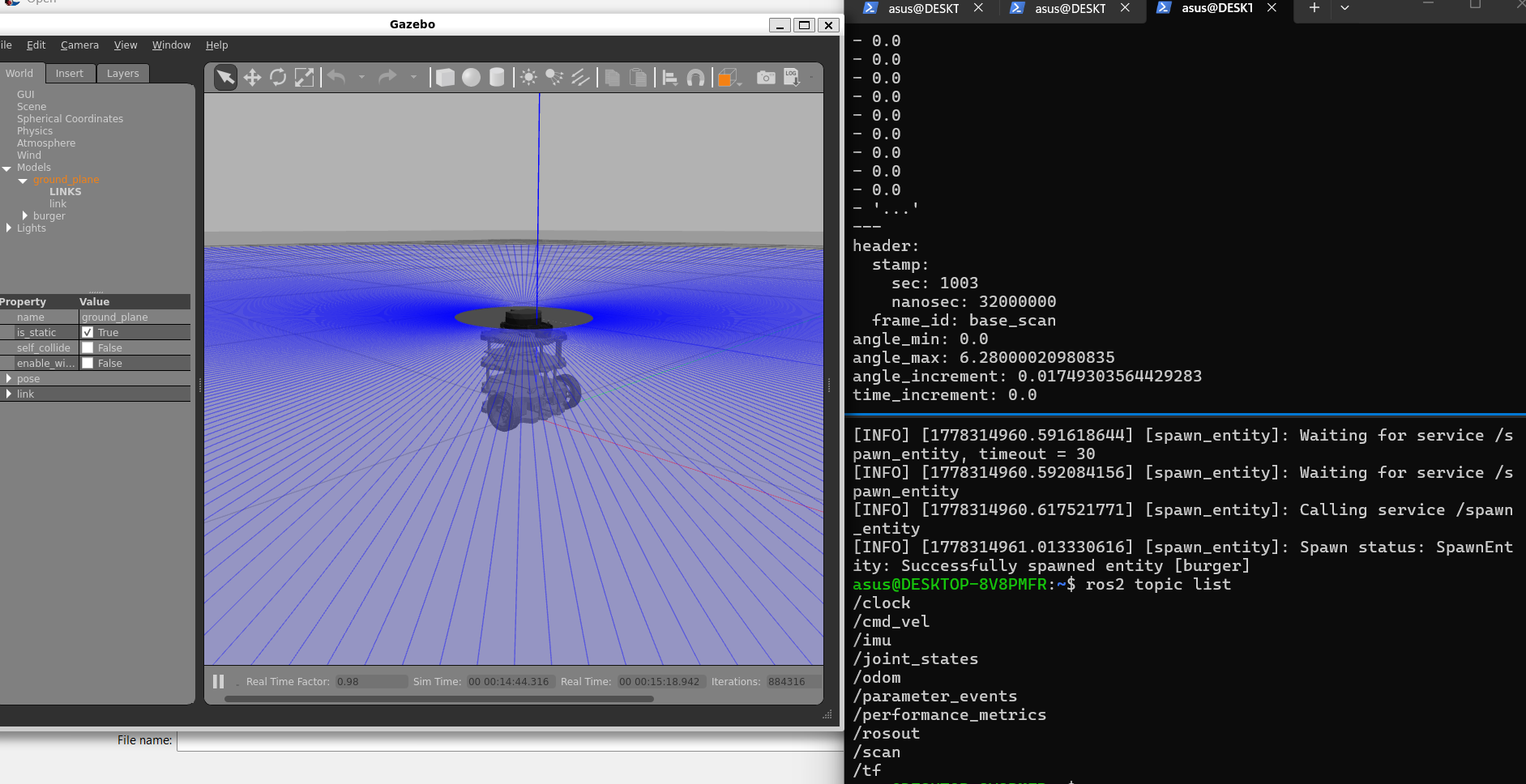
That moment — Gazebo showing TurtleBot3 Burger spawned and running, the terminal confirming /cmd_vel, /scan, and /odom are all live. The blue lines radiating from the robot are the simulated LiDAR rays scanning the environment.
Making Life Easier With Aliases
Running that sequence every time is tedious. I added shortcuts to ~/.bashrc:
cat <<'EOF' >> ~/.bashrc

alias killgz='pkill -9 gzserver 2>/dev/null; pkill -9 gzclient 2>/dev/null; pkill -9 gazebo 2>/dev/null'

alias gzros='source /opt/ros/humble/setup.bash && \
  export TURTLEBOT3_MODEL=burger && \
  export GAZEBO_MODEL_DATABASE_URI="" && \
  export GAZEBO_MODEL_PATH=/usr/share/gazebo-11/models:/opt/ros/humble/share/turtlebot3_gazebo/models && \
  gzserver --verbose -s libgazebo_ros_init.so -s libgazebo_ros_factory.so'

alias gzgui='source /opt/ros/humble/setup.bash && gzclient'

alias spawnburger='source /opt/ros/humble/setup.bash && \
  ros2 run gazebo_ros spawn_entity.py \
  -entity burger \
  -file /opt/ros/humble/share/turtlebot3_gazebo/models/turtlebot3_burger/model.sdf \
  -x 0 -y 0 -z 0.01'

alias teleopburger='source /opt/ros/humble/setup.bash && \
  ros2 run turtlebot3_teleop teleop_keyboard'

EOF

source ~/.bashrc
Now the whole workflow is four short commands across four terminals:
T1: killgz && gzros
T2: gzgui
T3: spawnburger
T4: teleopburger
What I Actually Learned About ROS2
After all that, here is what ROS2 is in plain terms: a robot is many small programs talking to each other. Each program is a node. Nodes talk through topics. Data has a fixed format called a message.
Here is how TurtleBot3 fits that model:
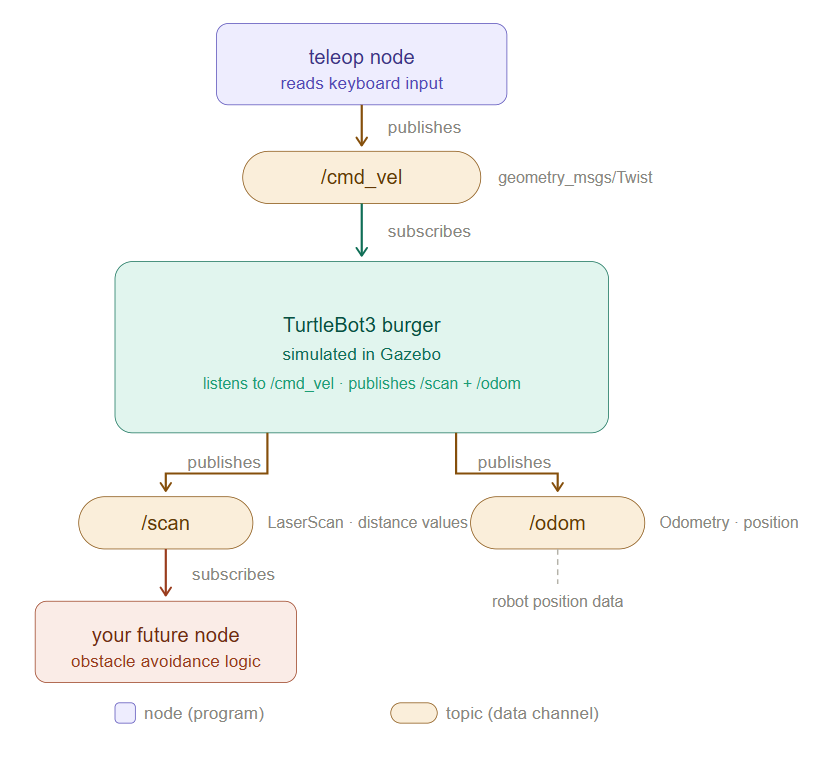
This diagram helped me understand how ROS2 topics actually flow: the keyboard teleop node publishes velocity commands to /cmd_vel, TurtleBot3 subscribes to it, and the robot publishes sensor and position data through /scan and /odom.
When I ran ros2 topic echo /scan, I saw actual distance values from the simulated LiDAR — numbers like 0.74 or 1.14 meaning an obstacle at that distance in meters, and inf meaning open space. That was the moment it clicked. Sensor data flows through topics. My code can read it and make decisions.
| Topic | Message Type | Carries |
|---|---|---|
/cmd_vel |
geometry_msgs/Twist |
velocity commands |
/scan |
sensor_msgs/LaserScan |
LiDAR distances |
/odom |
nav_msgs/Odometry |
position + movement |
A handy debugging cheatsheet for when things break:
| What you see | What it means |
|---|---|
/cmd_vel missing from ros2 topic list |
Robot not spawned |
Publisher 1, Subscriber 0 on /cmd_vel |
Teleop running, robot not there |
Publisher 0, Subscriber 1 on /cmd_vel |
Robot ready, teleop not running |
Publisher 1, Subscriber 1 on /cmd_vel |
Everything connected ✓ |
What Comes Next
Now that the robot moves and I can read sensor data, the next step is writing my own ROS2 node that reads from /scan and publishes to /cmd_vel — a basic obstacle avoidance robot, in simulation, before touching real hardware.
The path from here:
 Install ROS2 + Gazebo + TurtleBot3 in WSL2
 Understand nodes, topics, messages
→ Create first custom ROS2 package + node
→ Subscribe to /scan data
→ Publish to /cmd_vel
→ Combine into obstacle avoidance
→ SLAM, Nav2, AI-based control
The Honest Summary
I came in thinking I would move a robot in twenty minutes. I spent most of the day wrestling with BitLocker, disk partitions, Gazebo plugins, and ghost processes.
At the end of it:
ROS2 Humble is installed and working in WSL2
Gazebo runs with OpenGL acceleration on Intel Iris Xe
TurtleBot3 Burger spawns and responds to commands
I understand what nodes, topics, and messages actually are Was it smooth? No. But I learned more from debugging than I would have from a perfect install. That is probably the most honest thing I can say about learning robotics.
Next post: Writing my first custom ROS2 node to read LiDAR data and make TurtleBot3 avoid obstacles.
Tags: #ros2 #robotics #wsl2 #turtlebot3 #gazebo #linux #beginners #learning-journey
