# ROS2 Part 2: Custom Nodes, Services, and Finally Making the Robot Move in Circles
* * *
In [Part 1](https://blog.sandip404.com.np/from-arduino-to-ros2-my-chaotic-first-step-into-robot-simulation), I spent an entire day fighting BitLocker, disk partitions, and ghost Gazebo processes before a robot finally moved. The robot moved. I felt accomplished.
Then I realized I had only run other people's code.
Part 2 is about writing my own. Custom messages, services, parameters, launch files, a velocity controller, and RViz2. Each one had at least one moment where I stared at the terminal wondering what I did wrong.
Let me walk through it exactly as it happened.
* * *
## First: The Workspace Structure
Before writing any node, the workspace needs to be right. Every ROS2 project follows the same layout:
```plaintext
~/ros2_ws/
├── src/ ← your packages go here. Only here.
├── build/ ← auto-created by colcon. Never touch.
├── install/ ← built packages land here. Source setup.bash from here.
└── log/ ← build logs. Check when colcon fails mysteriously.
```
The rule I learned the hard way: **always run** `colcon build` **from** `~/ros2_ws/`**, not from inside** `src/`. And after every single build, source the workspace:
```bash
source install/setup.bash
```
Without this, `ros2 run` cannot find your executable. Every time. Every terminal. I set this in `~/.bashrc` eventually, but for a while I was running nodes and getting "package not found" because I forgot to source.
* * *
## Custom Messages: Making Nodes Actually Speak to Each Other
### Creating the package
```bash
cd ~/ros2_ws/src
ros2 pkg create tutorial_pkg --build-type ament_cmake \
--dependencies rclcpp std_msgs geometry_msgs sensor_msgs
```
This creates `tutorial_pkg` with `CMakeLists.txt` and `package.xml` inside. The `--dependencies` flag pre-fills them so you do not have to add everything manually.
### Defining a custom message
```bash
mkdir -p ~/ros2_ws/src/tutorial_pkg/msg
nano ~/ros2_ws/src/tutorial_pkg/msg/MyData.msg
```
Inside:
```plaintext
int32 counter
float64 value
string label
```
This is the message format. Three fields. ROS2 auto-generates a C++ header from this file at build time — you then use `tutorial_pkg::msg::MyData` in your code. Simple enough.
### The CMakeLists.txt additions that matter
For custom messages, you need to tell CMakeLists to generate the interface code. Add this after `find_package()`:
```cmake
find_package(rosidl_default_generators REQUIRED)
rosidl_generate_interfaces(${PROJECT_NAME}
"msg/MyData.msg"
)
ament_export_dependencies(rosidl_default_runtime)
```
And in `package.xml`:
```xml
rosidl_default_generators
rosidl_default_runtime
rosidl_interface_packages
```
Build and verify:
```bash
cd ~/ros2_ws
colcon build --packages-select tutorial_pkg
source install/setup.bash
ros2 interface show tutorial_pkg/msg/MyData
```
If your three fields print back — the message exists and is ready to use.
### The linking problem I hit
When I registered the publisher and subscriber executables in CMakeLists.txt, I wrote the usual `ament_target_dependencies`. It compiled. Then it crashed at runtime because the executable could not find the custom message type.
The fix was one extra line I did not know about:
```cmake
rosidl_get_typesupport_target(cpp_typesupport_target
${PROJECT_NAME} "rosidl_typesupport_cpp")
target_link_libraries(my_publisher ${cpp_typesupport_target})
target_link_libraries(my_subscriber ${cpp_typesupport_target})
```
Any node that uses a custom message type needs to link against the generated code. `ament_target_dependencies` handles standard packages, but for your own generated interfaces you need `target_link_libraries` with `cpp_typesupport_target`.
Once that was in place, both nodes ran correctly. The publisher sent a message every second. The subscriber printed it. I verified with:
```bash
ros2 topic echo /my_data
ros2 topic hz /my_data # confirm it's publishing at 1 Hz
ros2 topic info /my_data # publisher count: 1, subscriber count: 1
```
* * *
## Services: Request, Response, and a Broken `.srv` File
### What a service actually is
A topic is continuous — publishers keep sending whether anyone is listening or not. A service is one request, one response. The client sends something, waits, and the server replies. Think of it like calling a function on another process.
### Creating the service definition
```bash
mkdir -p ~/ros2_ws/src/tutorial_pkg/srv
nano ~/ros2_ws/src/tutorial_pkg/srv/CountImages.srv
```
My first attempt looked like this:
```plaintext
---
int32 count
string message
```
This is wrong. The `---` separator divides the request (above) from the response (below). I left the request section completely empty. ROS2 rejected it.
The correct version:
```plaintext
string folder_path
---
int32 count
string message
```
A service must have something on both sides of `---`. After fixing that and adding `"srv/CountImages.srv"` to the `rosidl_generate_interfaces` block in CMakeLists.txt, I rebuilt. Still did not work — I kept getting:
```plaintext
Unknown service type: tutorial_pkg/srv/CountImages
```
The actual fix was a clean rebuild:
```bash
cd ~/ros2_ws
rm -rf build install log
colcon build
source install/setup.bash
```
After a fresh build from zero, the service type appeared:
```bash
ros2 interface list | grep CountImages
# tutorial_pkg/srv/CountImages
```
Then calling it from terminal worked:
```bash
ros2 service call /count_images tutorial_pkg/srv/CountImages \
"{folder_path: '/home/sandip/Pictures'}"
```
The server replied with the count and a message. Request-response, as designed.
One more thing I was missing initially: `ament_package()` at the very end of CMakeLists.txt. This is required. Without it the build either fails or produces something broken. It is easy to forget when you are editing a long file in the middle.
* * *
## Parameters: Configuring Nodes at Runtime
Parameters let you change a node's behaviour without recompiling. The `timer_node` I wrote reads a period value at startup:
```cpp
declare_parameter("timer_period_s", 2.0);
double period = get_parameter("timer_period_s").as_double();
```
The default is 2.0 seconds. You can override it at launch:
```bash
ros2 run tutorial_pkg timer_node --ros-args -p timer_period_s:=1.0
```
When I first tried running this, I got:
```plaintext
Package 'tutorial_pkg' not found
```
Not because the code was wrong — because I had not sourced the workspace in that terminal. I added both source lines to `~/.bashrc` to stop making this mistake:
```bash
echo "source /opt/ros/humble/setup.bash" >> ~/.bashrc
echo "source ~/ros2_ws/install/setup.bash" >> ~/.bashrc
source ~/.bashrc
```
Every new terminal now has both automatically.
* * *
## Launch Files: Starting Everything at Once
A launch file starts multiple nodes with one command. Instead of opening four terminals and running four things separately, one command handles it all.
```python
# launch/my_launch.py
from launch import LaunchDescription
from launch_ros.actions import Node
def generate_launch_description():
return LaunchDescription([
Node(
package='tutorial_pkg',
executable='my_publisher',
name='publisher_node',
output='screen',
),
Node(
package='tutorial_pkg',
executable='my_subscriber',
name='subscriber_node',
output='screen',
),
Node(
package='tutorial_pkg',
executable='timer_node',
name='timer_node',
output='screen',
parameters=[{'timer_period_s': 1.5}],
),
])
```
Add the launch directory to `CMakeLists.txt`:
```cmake
install(DIRECTORY launch
DESTINATION share/${PROJECT_NAME}
)
```
Build, then:
```bash
ros2 launch tutorial_pkg my_launch.py
```
All three nodes start. `Ctrl+C` kills all of them at once. No hunting through terminals.
* * *
## Making the Robot Actually Move
### The velocity controller
This node makes TurtleBot3 drive in a square. It alternates between two phases using a simple counter:
```cpp
// Timer fires every 100ms
if (phase_ == 0) {
msg.linear.x = 0.2; // forward at 0.2 m/s
msg.angular.z = 0.0;
if (++step_ >= 20) { phase_ = 1; step_ = 0; } // 2 seconds forward
} else {
msg.linear.x = 0.0;
msg.angular.z = 0.5; // turn at 0.5 rad/s
if (++step_ >= 16) { phase_ = 0; step_ = 0; } // ~90 degrees
}
publisher_->publish(msg);
```
Every robot controller at any level of complexity is a variation of this structure: a timer-driven loop that reads state, makes a decision, and publishes a command. Whether it is a simple square driver or a full navigation planner, the pattern is the same.
The node publishes `geometry_msgs/Twist` messages to `/cmd_vel`. TurtleBot3's motor driver subscribes to `/cmd_vel` and translates them into wheel speeds inside Gazebo. I do not touch the physics — I just send velocity commands and the simulation handles the rest.
One issue I hit: I wrote `velocity_controller.cpp` but forgot to add it to `CMakeLists.txt`. When I ran `ros2 run tutorial_pkg velocity_controller`, it did not exist. The fix was adding it properly:
```cmake
add_executable(velocity_controller src/velocity_controller.cpp)
ament_target_dependencies(velocity_controller rclcpp geometry_msgs)
target_link_libraries(velocity_controller ${cpp_typesupport_target})
install(TARGETS
my_publisher
my_subscriber
velocity_controller
DESTINATION lib/${PROJECT_NAME}
)
```
After rebuilding, the robot started driving squares in Gazebo. That was a satisfying moment.
* * *
## RViz2: The Robot That Appeared to Be Falling
### Setting it up
```bash
rviz2
```
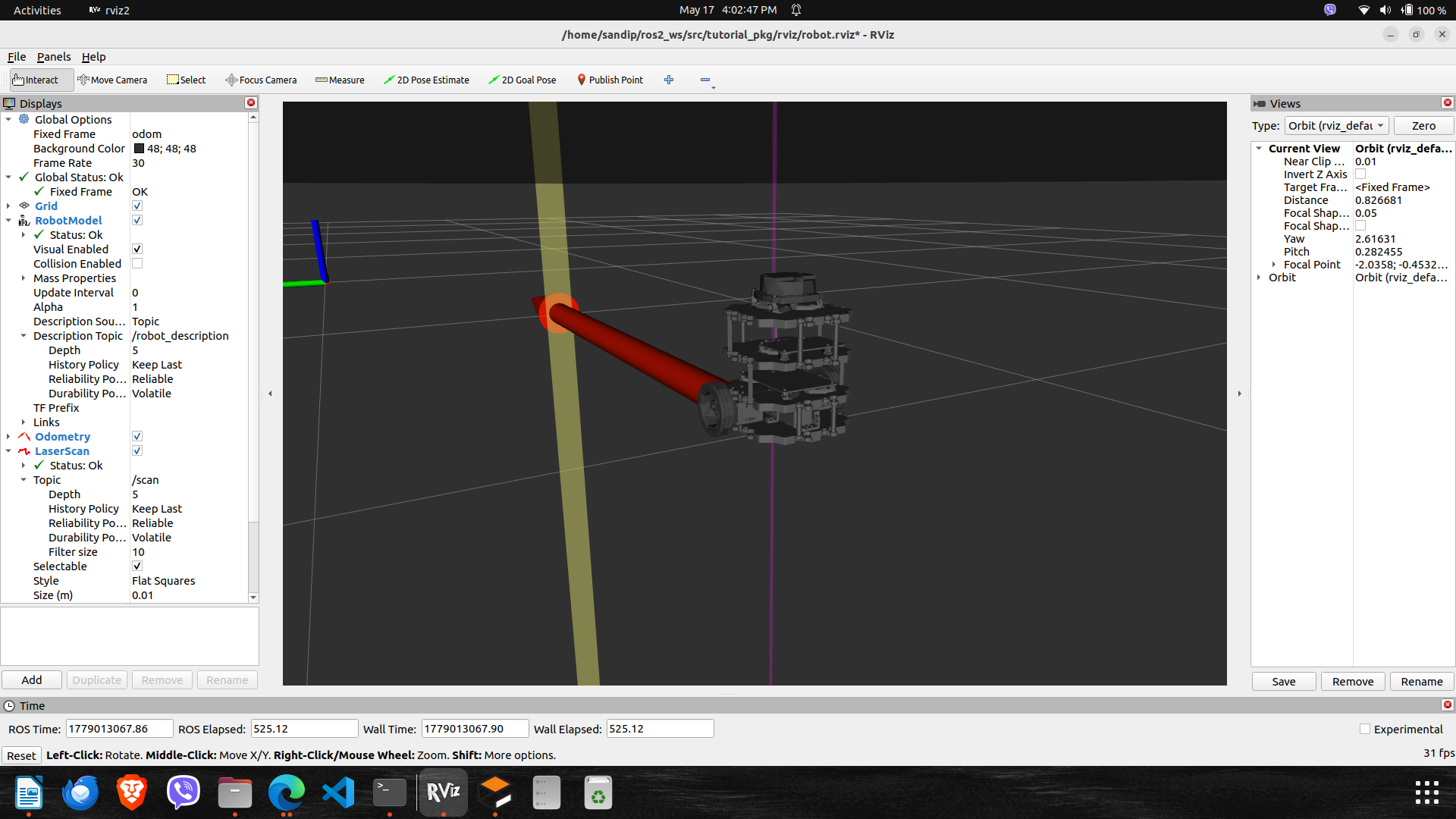
RViz2 opens to an empty grey window. You have to configure what to display. The first and most important setting is **Fixed Frame**. Change it from `map` to `odom`. Without this, nothing shows up — RViz cannot place anything without knowing the reference frame.
Then add displays:
* **Add → RobotModel** — shows the 3D robot body. Set Description Topic to `/robot_description`.
* **Add → TF** — shows all coordinate frame axes.
* **Add → Odometry → /odom** — draws an arrow showing estimated position and heading.
* **Add → LaserScan → /scan** — draws the cyan dots for LiDAR readings.
### The hidden Description Topic problem
When I added RobotModel and tried to set Description Topic, the value column in the left panel was too narrow to show anything. It looked like the field was empty but I could not click it. The fix: drag the vertical divider between the property name column and the value column to make the value side wider. Then double-click the value area next to Description Topic and type `/robot_description`.
### The robot appeared to be falling sideways
When I first got the robot model to appear, it looked tilted — like it was leaning at an angle or about to fall. My first thought was a physics problem. It was not.
It was the camera.
In the right panel under Views, my camera had Pitch: 0.41 (about 23 degrees) and Yaw: 1.37 (about 78 degrees). I was looking at the robot from a diagonal overhead angle that made it appear tilted relative to my screen, when it was perfectly upright in the world.
The fix: click the **Zero** button in the top-right of the Views panel. This resets pitch, yaw, and zoom to a neutral front-facing view. The robot immediately looked correct — a small box standing straight on flat ground.
You can verify whether the robot is genuinely tilted in Gazebo's physics by checking:
```bash
ros2 topic echo /odom --once
```
Look at `pose.pose.orientation.w`. If it is close to 1.0, the robot is upright. If it is near 0.0, something is actually wrong with the spawn.
Mine was close to 1.0. Camera issue, fully confirmed.
### The magenta vertical line
In RViz2 I also saw a magenta vertical line sticking up from the ground. I spent a few minutes wondering what was broken. It is not broken — it is the Z-axis arrow of the `odom` coordinate frame origin. It means your TF system is publishing, which is good. Once you add the TF display properly, you see all the frame axes and it makes sense.
### Verifying the TF tree
To check that all robot links are connected correctly:
```bash
ros2 run tf2_tools view_frames
evince frames.pdf
```
A healthy TurtleBot3 TF tree looks like:
```plaintext
odom → base_footprint → base_link → base_scan
→ imu_link
→ wheel_left_link
→ wheel_right_link
```
If any link is missing or shown as dashed, that explains why parts of the robot appear wrong in RViz2.
* * *
## rqt\_graph: The Isolated Node Mystery
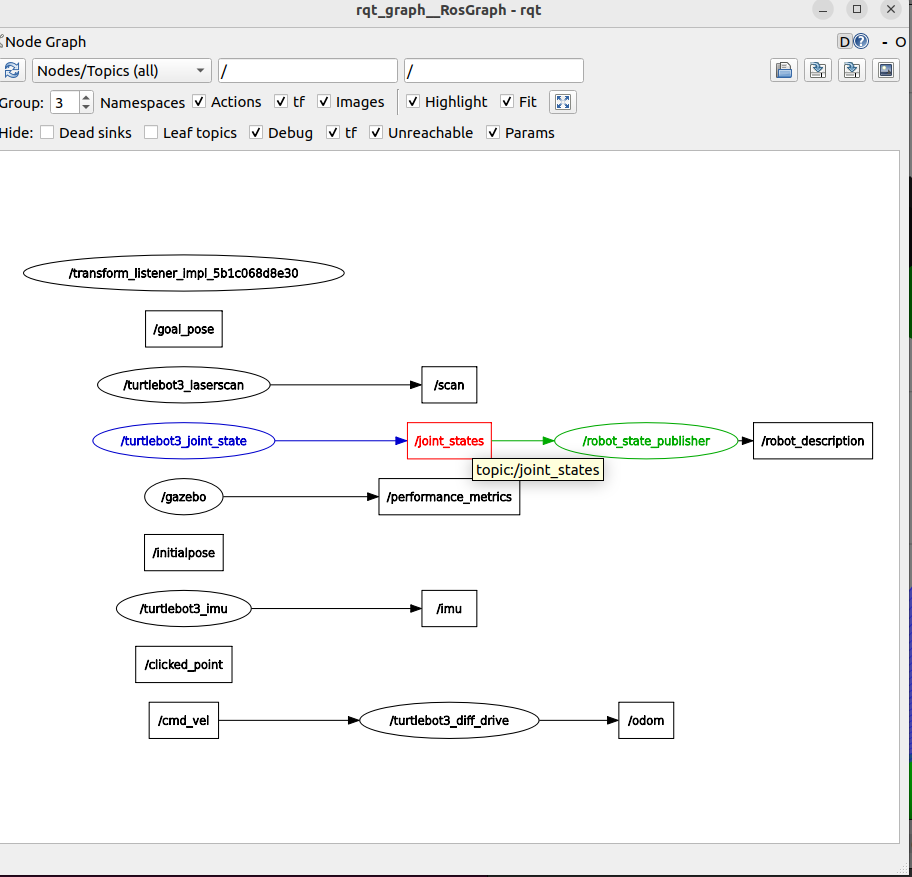
Running `rqt_graph` while everything was active showed several nodes floating in isolation — no connections, no topics. I had the velocity controller running and publishing to `/cmd_vel`, but the graph showed it like it was talking to nobody.
The fix is two checkboxes at the bottom of rqt\_graph:
* **Dead sinks** — hides topics that currently have no subscriber. Since I was not running a dedicated subscriber to `/cmd_vel`, rqt hid the topic entirely — making the publishing node look orphaned.
* **Leaf topics** — hides topics at the outer edge of the graph. My `/scan` and `/odom` had nothing consuming them downstream (I had not written a subscriber yet), so they were hidden.
Uncheck both. Click the refresh button (circular arrow, top-left). The full graph appeared — velocity controller publishing to `/cmd_vel`, the motor driver consuming it and publishing `/odom`, the LiDAR publishing `/scan`, the joint state publisher feeding into robot state publisher feeding into `/tf`.
All of it was connected. It just needed the hide filters removed to show it.
* * *
## What I Learned This Session
**The publish-subscribe pattern does not care about who is connected.** You can run a publisher with no subscriber, or a subscriber with nothing publishing. The system does not error. It just waits. This is why `Subscription count: 0` does not crash anything — the publisher keeps sending whether anyone is listening or not.
**CMakeLists.txt has to know about everything.** Every new executable needs `add_executable`, `ament_target_dependencies`, `target_link_libraries`, and an `install` entry. Missing any one of these produces either a build error or a binary that silently cannot find what it needs at runtime.
**RViz2 is a visualization tool, not a simulation.** It shows you what the data says. If the robot looks wrong in RViz2 but looks correct in Gazebo, the problem is visualization configuration (fixed frame, camera angle, display settings) — not physics. Check Gazebo first before assuming something is broken.
**Services vs topics:** topics are continuous streams, services are one-shot function calls. Use topics for sensor data and motor commands. Use services for requests that need a specific response — "how many images have you saved?", "reset your counter", "is the robot done with this task?".
* * *
## The Full Command Reference for This Session
```bash
# Build (always from ~/ros2_ws)
colcon build --packages-select tutorial_pkg
# Source (every terminal, or add to ~/.bashrc)
source ~/ros2_ws/install/setup.bash
# Verify custom message built correctly
ros2 interface show tutorial_pkg/msg/MyData
# Call a service manually
ros2 service call /count_images tutorial_pkg/srv/CountImages \
"{folder_path: '/home/sandip/Pictures'}"
# Change a parameter on running node
ros2 param set /timer_node timer_period_s 0.5
# Start everything with one command
ros2 launch tutorial_pkg my_launch.py
# Watch the robot's position
ros2 topic echo /odom --once
# Check TF tree
ros2 run tf2_tools view_frames && evince frames.pdf
# Open RViz2 with saved config
rviz2 -d ~/ros2_ws/src/tutorial_pkg/rviz/robot.rviz
```
* * *
## What Comes Next
The velocity controller drives a fixed square pattern with no awareness of its surroundings. The `/scan` topic is publishing LiDAR distances every scan cycle and nothing is reading them. The obvious next step is a node that reads `/scan`, detects when an obstacle is close, and changes the velocity command accordingly.
That is obstacle avoidance — the first step toward a robot that actually responds to the world instead of blindly following a hardcoded pattern.
```plaintext
ROS2 installed, TurtleBot3 running in Gazebo
Custom messages, services, parameters, launch files
Velocity controller — robot drives squares
RViz2 configured with robot model, TF, LiDAR, odometry
→ Subscribe to /scan and read LiDAR distances
→ Publish to /cmd_vel based on what the sensor sees
→ Build obstacle avoidance from scratch
→ SLAM, Nav2, and beyond
```
* * *
*Part 2 of the ROS2 from Scratch series. Running ROS2 Humble on Ubuntu 22.04 WSL2, TurtleBot3 Burger in Gazebo Classic.*
* * *
**Tags:** `#ros2` `#robotics` `#turtlebot3` `#gazebo` `#rviz2` `#nodes` `#services` `#linux` `#learning-journey`